Dynamic tracks
Dynamic tracks show how data change across a series of steps (time points, developmental stages, cell types, ...) as an animation. Instead of stacking several tracks, a dynamic track draws one step at a time in the same track row and cycles through the steps in a loop.
The Browser supports these dynamic track types:
| Track type | What it animates | How the steps are defined |
|---|---|---|
dbedgraph | numerical data | one file; each line holds an array of values, one per step |
dynamic | numerical data (bigWig, bedGraph) | several member tracks, one per step |
dynamicbed | annotation data (bed) | several member tracks, one per step |
dynamichic | Hi-C contact maps (hic) | several member tracks, one per step |
dynamiclongrange | chromatin interactions (longrange) | several member tracks, one per step |
The screenshots on this page show a single frame. In the Browser these tracks keep cycling through their frames until you pause them.
Dynamic bedgraph (dbedgraph)
File format
The dynamic bedgraph format is almost the same as the regular bedGraph format, except that the last column is an array of values, one value per step:
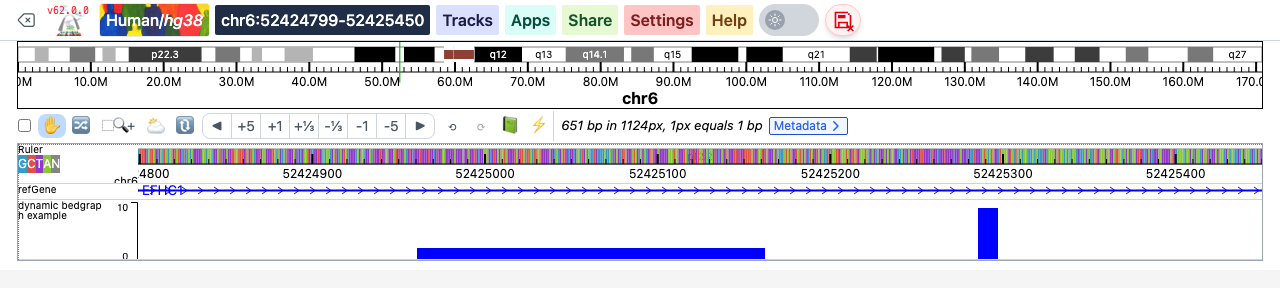
chr6    52424961        52425161        [10,9,8,7,6,5,4,3,2,1]
chr6    52425286        52425296        [1,2,3,4,5,6,7,8,9,10]
The arrays do not all need to have the same length. When a region has a shorter array than other regions in the view, its values are reused from the beginning of the array. To avoid this, fill the missing steps with 0.
Negative values are allowed. When the view contains negative values, a line is drawn at zero and the bars for negative values point downward.
Sort the file, compress it with bgzip and index it with tabix, the same as a bedGraph file (see File based tracks). An example file is available at https://vizhub.wustl.edu/public/misc/dynamicTrack/dynamic-hubs/test.dbg.gz.
Add a dynamic bedgraph track
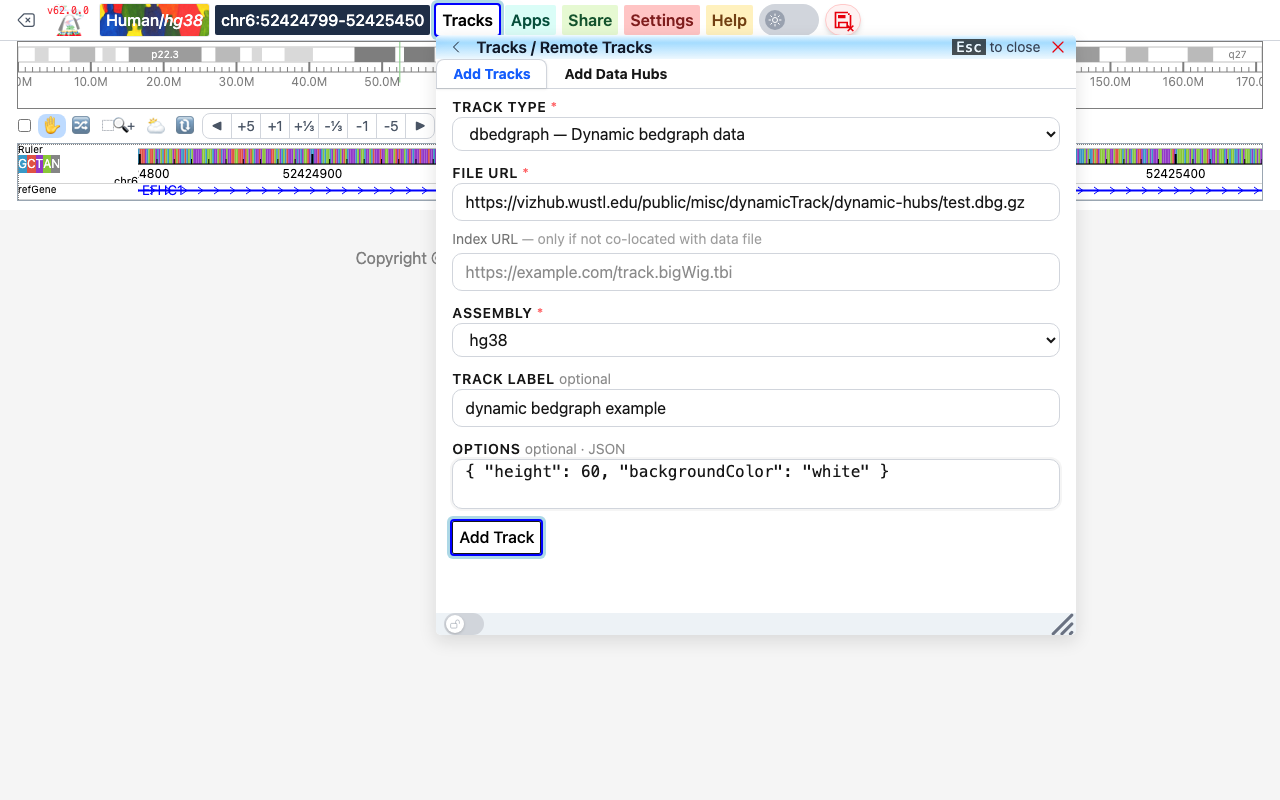
- Click Tracks, then Remote Tracks.
- On the Add Tracks tab, choose dbedgraph — Dynamic bedgraph data as the Track type.
- Paste the URL of the
.dbg.gzfile into File URL. The index URL is only needed if the.tbifile is not next to the data file. - Optionally type a Track label and track Options in JSON.
- Click Add Track.
The new track starts playing as soon as it is loaded:
A dbedgraph file stored on your computer can be added the same way from Tracks → Local Tracks (see Local tracks).
In a datahub, a dynamic bedgraph track is defined like any other file track:
[
  {
    "type": "dbedgraph",
    "name": "dynamic bedgraph example",
    "url": "https://vizhub.wustl.edu/public/misc/dynamicTrack/dynamic-hubs/test.dbg.gz",
    "options": { "height": 60, "backgroundColor": "white" },
    "showOnHubLoad": true
  }
]
Dynamic tracks made from member tracks
The other four dynamic types are built from a list of existing tracks of the same kind. Each member track becomes one step of the animation, in the order given. They are defined in a datahub, with the member tracks listed in a tracks attribute. Load the hub from Tracks → Remote Tracks → Add Data Hubs, or pass it in the URL (see Datahub).
Dynamic plot (dynamic)
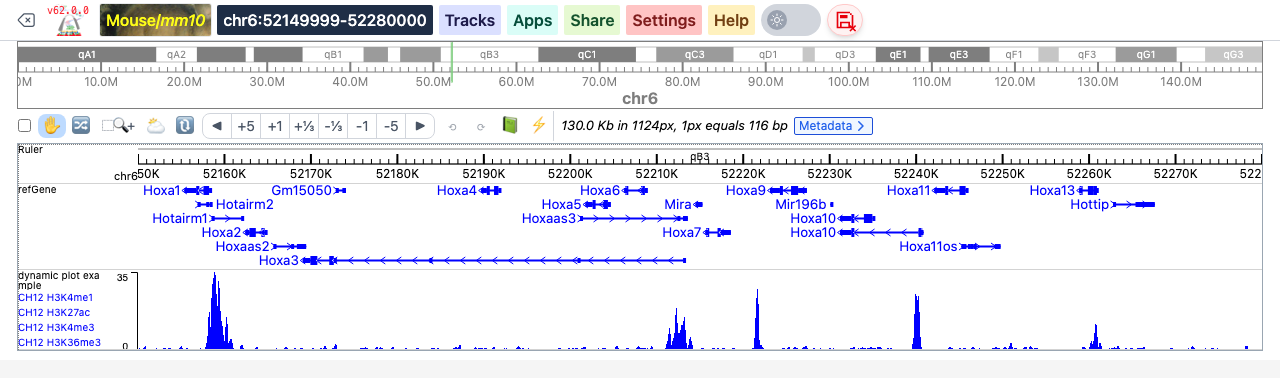
A dynamic plot animates several numerical tracks (bigWig or bedGraph). The track legend lists the member tracks. This example shows four histone marks in the mouse CH12 cell line on the mm10 genome:
[
  {
    "type": "dynamic",
    "name": "dynamic plot example",
    "showOnHubLoad": true,
    "tracks": [
      {
        "type": "bigwig",
        "url": "https://vizhub.wustl.edu/public/misc/dynamicTrack/markers/ENCFF051LQD_H3K4me1.bigWig",
        "name": "CH12 H3K4me1"
      },
      {
        "type": "bigwig",
        "url": "https://vizhub.wustl.edu/public/misc/dynamicTrack/markers/ENCFF096TSJ_H3K27ac.bigWig",
        "name": "CH12 H3K27ac"
      },
      {
        "type": "bigwig",
        "url": "https://vizhub.wustl.edu/public/misc/dynamicTrack/markers/ENCFF011TAF_H3K4me3.bigWig",
        "name": "CH12 H3K4me3"
      },
      {
        "type": "bigwig",
        "url": "https://vizhub.wustl.edu/public/misc/dynamicTrack/markers/ENCFF700XWH_H3K36me3.bigWig",
        "name": "CH12 H3K36me3"
      }
    ]
  }
]
This hub is also available at https://vizhub.wustl.edu/public/misc/dynamicTrack/dynamic-hubs/plot.hub.
Dynamic bed (dynamicbed)
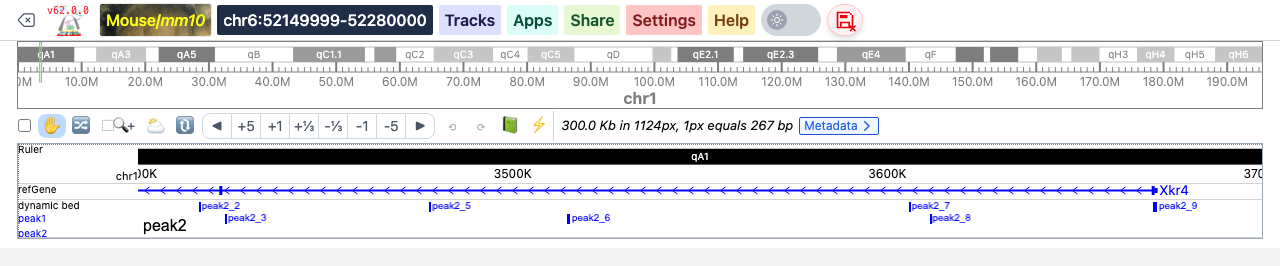
A dynamic bed track animates several bed annotation tracks, for example peak calls from different samples. The name of the member track being shown is written in the track.
[
  {
    "type": "dynamicbed",
    "name": "dynamic bed",
    "showOnHubLoad": true,
    "options": { "backgroundColor": "white" },
    "tracks": [
      {
        "type": "bed",
        "url": "https://vizhub.wustl.edu/public/misc/dynamicTrack/bed/peak1.bed.gz",
        "name": "peak1"
      },
      {
        "type": "bed",
        "url": "https://vizhub.wustl.edu/public/misc/dynamicTrack/bed/peak2.bed.gz",
        "name": "peak2"
      }
    ]
  }
]
Dynamic Hi-C (dynamichic)
A dynamic Hi-C track animates several hic tracks. The name of the Hi-C map being shown is written at the bottom left of the track. This example (hg19) cycles through in situ Hi-C maps of three cell lines:
[
  {
    "type": "dynamichic",
    "name": "dynamic hic",
    "showOnHubLoad": true,
    "options": { "height": 300 },
    "tracks": [
      {
        "type": "hic",
        "url": "https://s3.us-east-1.wasabisys.com/hicfiles/hiseq/gm12878/in-situ/combined.hic",
        "name": "GM12878 in situ Hi-C"
      },
      {
        "type": "hic",
        "url": "https://s3.us-east-1.wasabisys.com/hicfiles/hiseq/k562/in-situ/combined.hic",
        "name": "K562 in situ Hi-C"
      },
      {
        "type": "hic",
        "url": "https://s3.us-east-1.wasabisys.com/hicfiles/hiseq/imr90/in-situ/combined.hic",
        "name": "IMR90 in situ Hi-C"
      }
    ]
  }
]
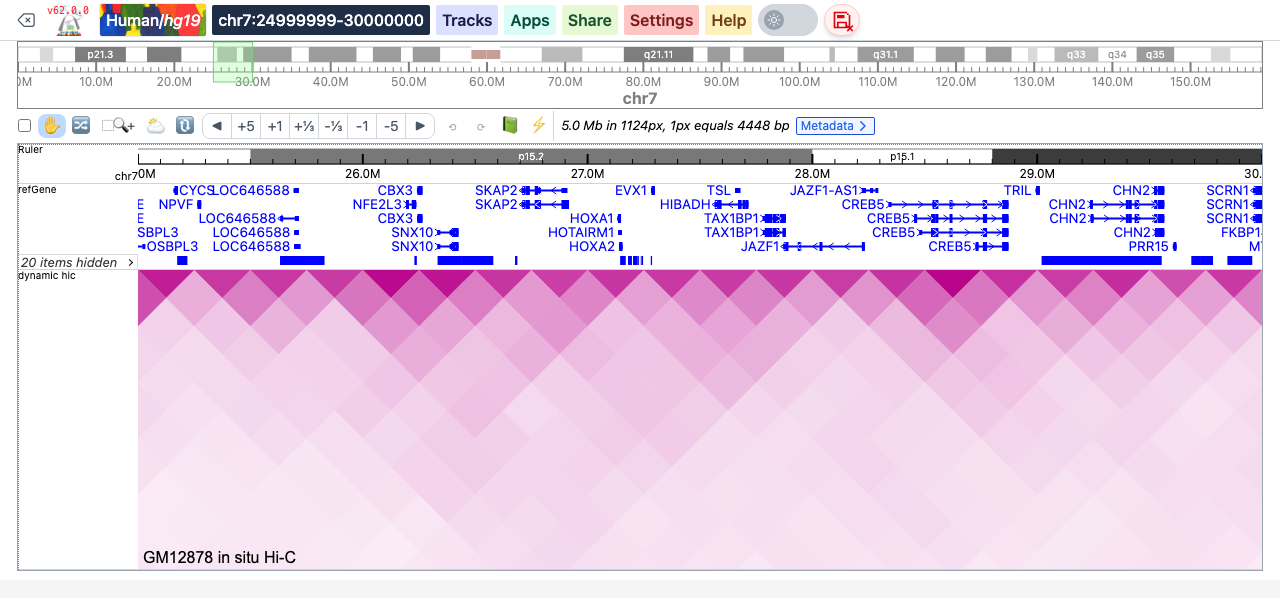
A dynamic Hi-C track can be drawn as a heatmap (the default) or as arcs: right-click the track and change Display mode. Its right-click menu also has the Hi-C settings Normalization, Bin size and Score scale.
Dynamic longrange (dynamiclongrange)
A dynamic longrange track animates several longrange interaction tracks. Like the dynamic Hi-C track, it can be shown as a heatmap or as arcs (Display mode in the right-click menu, or "displayMode": "arc" in the options).
[
  {
    "type": "dynamiclongrange",
    "name": "dynamic longrange",
    "showOnHubLoad": true,
    "options": { "height": 250, "displayMode": "arc" },
    "tracks": [
      {
        "type": "longrange",
        "url": "https://egg.wustl.edu/d/hg19/K562_pearson_100kb.gz",
        "name": "K562 Hi-C (100kb pearson correlation)"
      },
      {
        "type": "longrange",
        "url": "https://egg.wustl.edu/d/hg19/GM06990_obs_1mb.gz",
        "name": "GM06990 Hi-C (1mb observed read count)"
      }
    ]
  }
]
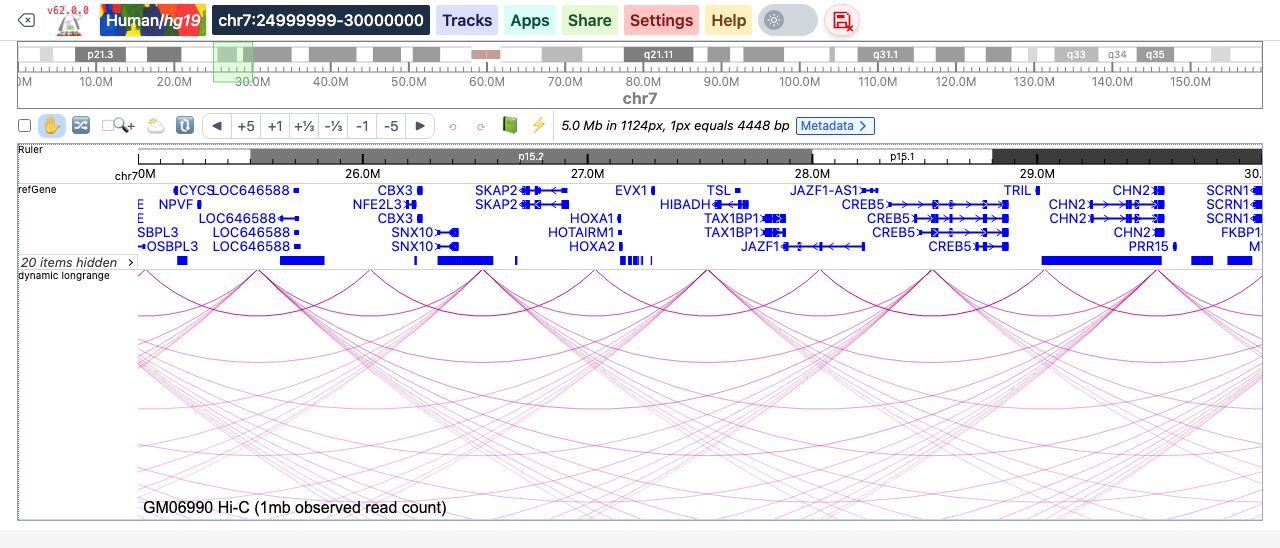
Dynamic track options
Right-click a dynamic track to open its settings menu. Besides the usual options such as the track label, height, colors and background color, dynamic tracks have their own options:
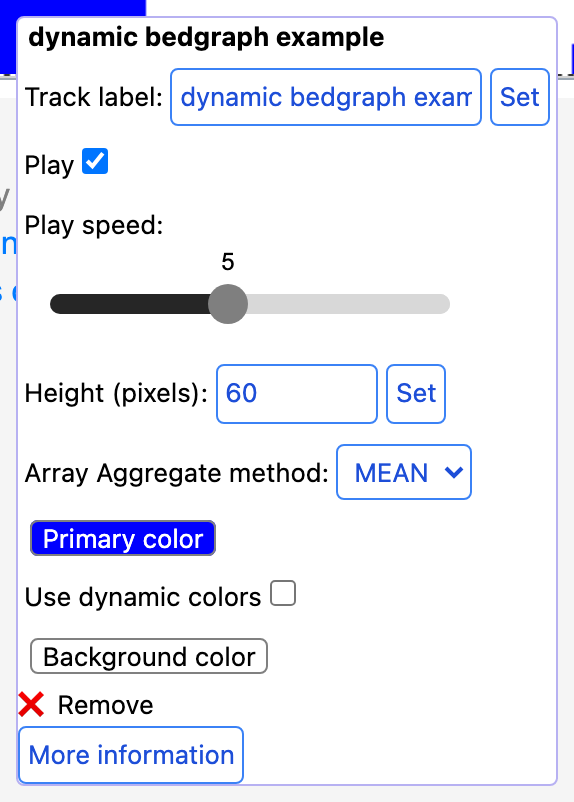
The same options can be set in a datahub, in the track's options (see Track properties).
playing
Whether the animation is playing (true, the default) or paused (false). In the right-click menu this is the Play checkbox. When paused, the track stays on the current frame.
speed
The speed of the animation, from 1 (slowest) to 10 (fastest). In a datahub the value is written as an array, for example [1] or [5]. In the right-click menu it is the Play speed slider.
useDynamicColors and dynamicColors
dynamicColors is a list of colors, one for each step of the animation. Each color can be a color name or any CSS color, such as "red" or "#00FF00". If there are more steps than colors, the colors are reused from the beginning of the list.
dynamicColors only takes effect when useDynamicColors is true. It then overrides the color (and color2) settings. When useDynamicColors is false, the track is painted with color. The Use dynamic colors checkbox in the right-click menu switches this option on and off for dbedgraph, dynamic, dynamicbed and dynamichic tracks.
[
  {
    "type": "dbedgraph",
    "name": "dynamic bedgraph with colors",
    "url": "https://vizhub.wustl.edu/public/misc/dynamicTrack/dynamic-hubs/test.dbg.gz",
    "options": {
      "dynamicColors": ["red", "blue", "#00FF00", "black"],
      "useDynamicColors": true,
      "backgroundColor": "white"
    },
    "showOnHubLoad": true
  }
]
Array Aggregate method (dbedgraph only)
When several data points of a dynamic bedgraph fall into the same screen pixel, their values are combined step by step. Array Aggregate method in the right-click menu (arrayAggregateMethod in a datahub) chooses how; the default is MEAN.
Set "backgroundColor": "white" (or another color) in the options of dbedgraph and dynamicbed tracks, as in the examples above, to give the track a light background. You can also change it later with Background color in the right-click menu.