Share, Settings and Help
The Share, Settings and Help buttons are in the top bar, after Tracks and Apps. Each opens a panel under the button. Close a panel with the × at its top right, by pressing Esc, or by clicking outside it. To keep a panel open while you click elsewhere, turn on the pin switch at its bottom left. Drag the corner at its bottom right to resize it.
Share
The Share panel gives you a link to the current view: the genome, the region, the tracks and their settings. Anyone who opens the link sees the same view. The panel has three tabs.
URL
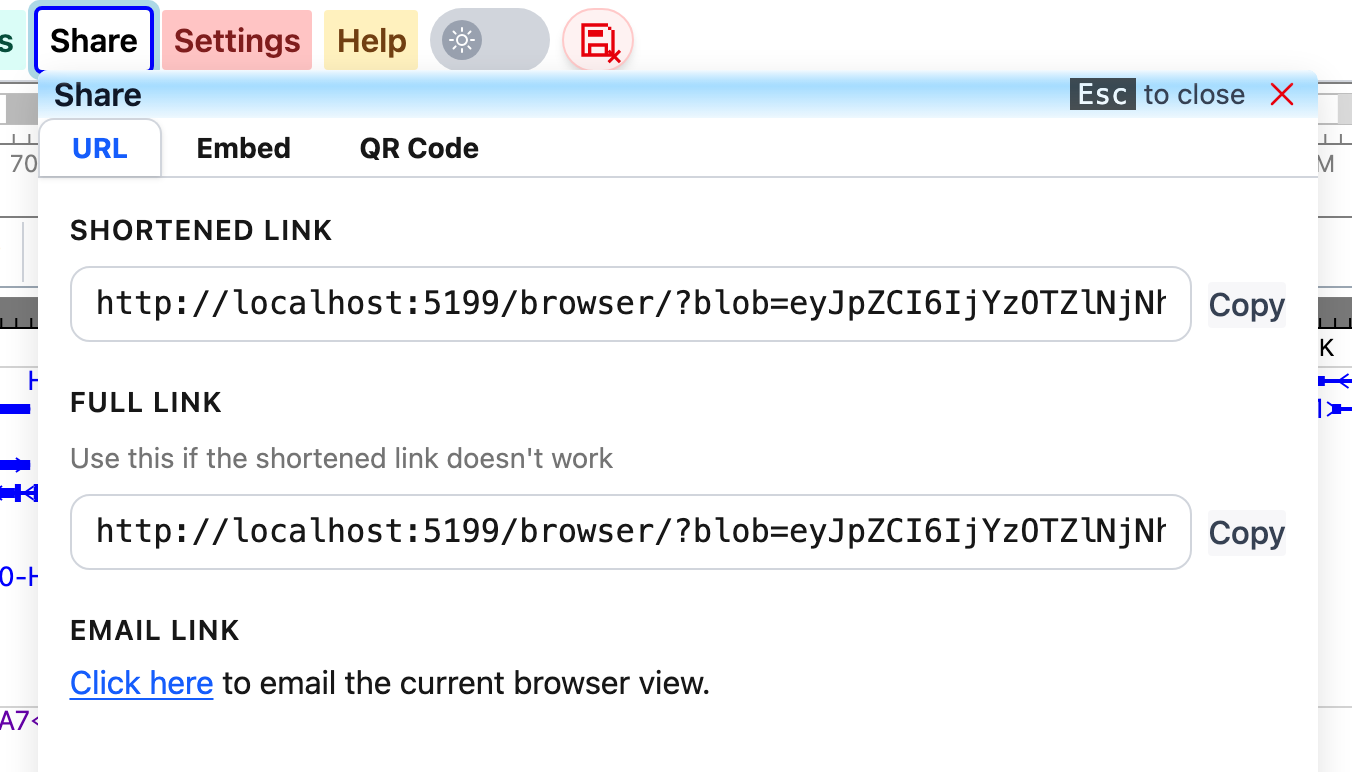
- Shortened link: a short link to the view, made with the TinyURL service. Click Copy to copy it.
- Full link: the complete link, with the whole view encoded in it. Use it if the shortened link does not work.
- Email link: Click here opens your email program with a new message that contains the link.
The links describe the view at the moment you made them. If you change the view while the panel is open, a yellow message says The shortened link is for an older version of this view. Click Refresh link to make a new one.
Embed
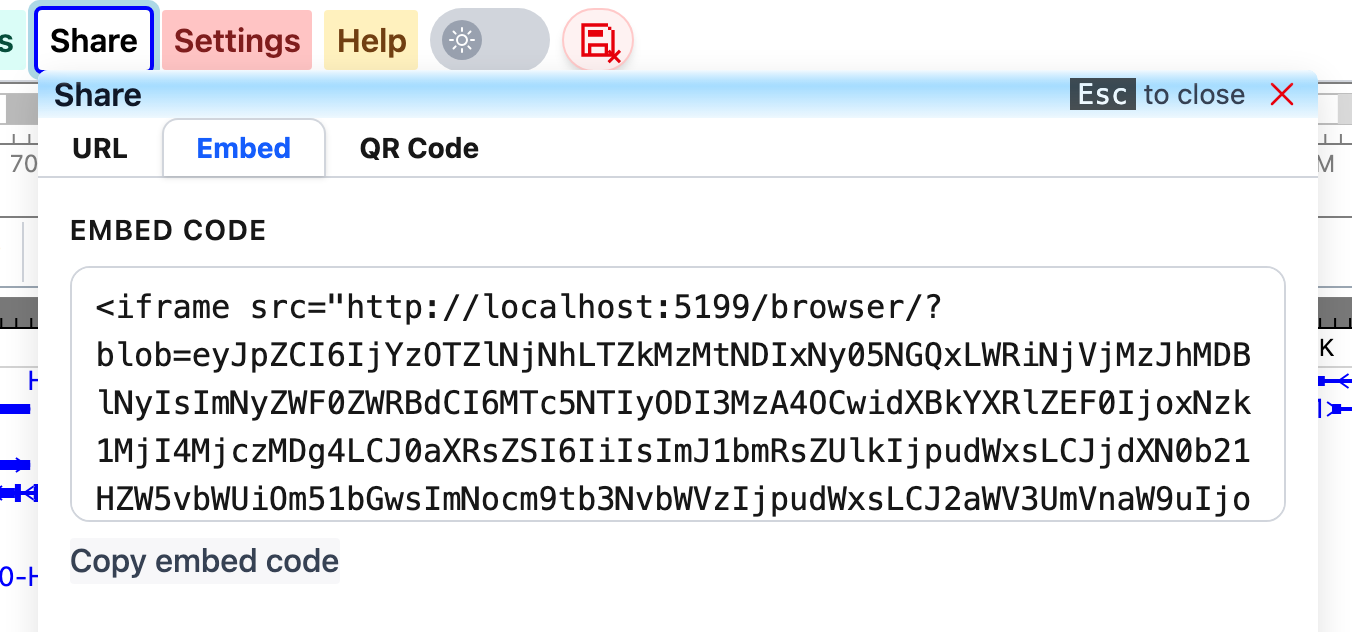
The Embed tab gives the HTML code of an iframe that shows the current view inside another web page. Click Copy embed code and paste the code into your page. See also Installation for other ways to put the Browser in a web page.
QR Code
The QR Code tab shows a QR code of the shortened link. Scan it with a phone to open the same view there.
Settings
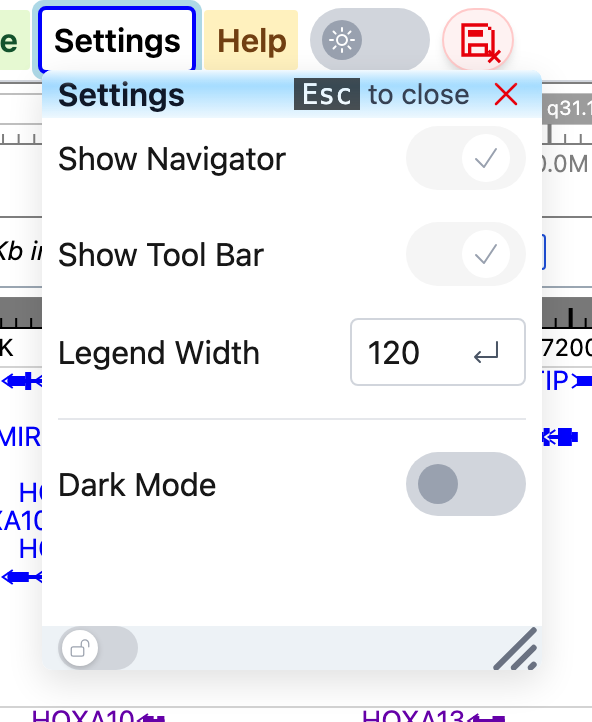
- Show Navigator: shows or hides the genome navigator (the chromosome overview under the top bar). Hide it to leave more room for tracks.
- Show Tool Bar: shows or hides the tool bar above the tracks (the tools, the zoom and pan buttons, and undo/redo). See Browsing the genome.
- Legend Width: the width, in pixels, of the track labels at the left of the tracks. The default is 120. Type a number and press Enter, or click the arrow in the box. Use a larger width for long track names.
- Dark Mode: switches the Browser to the dark theme.
Show Navigator and Show Tool Bar are turned back on when you reload the page.
Dark theme
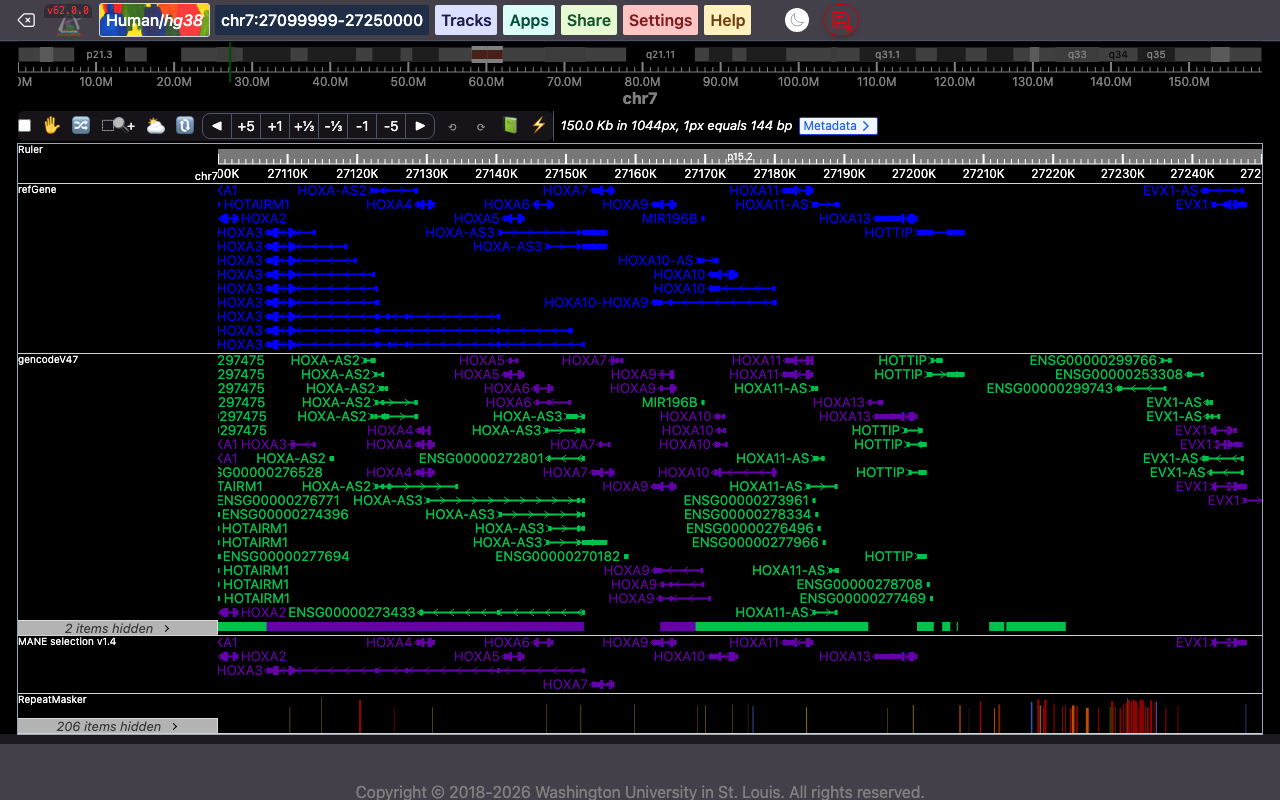
Besides the Dark Mode setting, the switch with the sun icon at the right of the Help button turns the dark theme on and off. The same switch is on the start page.
Help
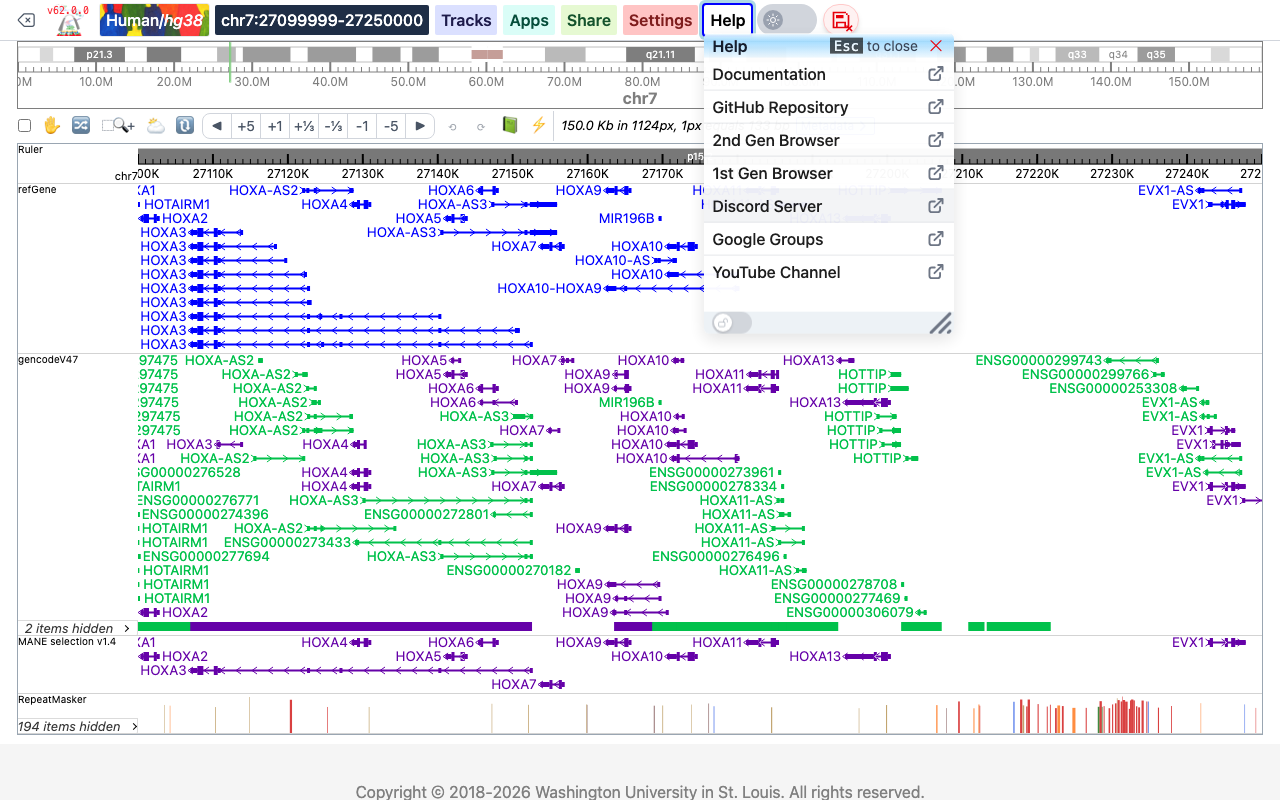
The Help panel has links to:
- Documentation: this documentation.
- GitHub Repository: the source code of the Browser.
- 2nd Gen Browser: the previous (2022) version of the Browser.
- 1st Gen Browser: the source code of the retired first version.
- Discord Server, Google Groups and YouTube Channel: where you can ask questions, get support and watch tutorials. See also Contact.
New version notice
The Browser checks every few minutes, and whenever you come back to its browser tab, whether a newer version has been published. If so, a dark bar at the bottom of the window says A new version of the browser is available. Click Refresh to reload the page with the new version, or × to dismiss the message and keep working.